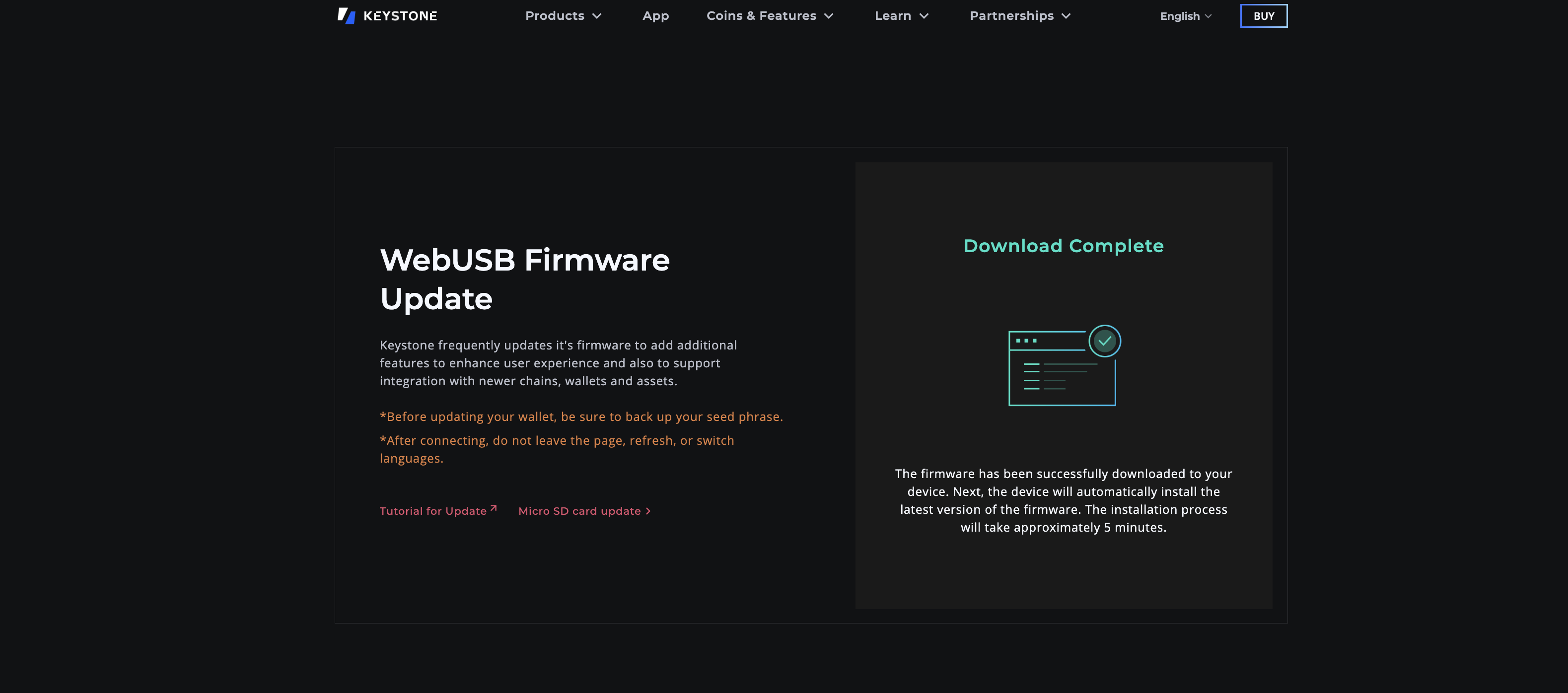
Firmware Upgrade
Firmware upgrades mainly introduce new features, bug fixes, and support for new blockchains. You can upgrade via a MicroSD card or USB.
Upgrade via MicroSD Card
Preparation
- Keystone 3 Pro
- MicroSD card (a 32GB or 64GB MicroSD card is recommended) and MicroSD card reader
- Computer
Steps
- Check Battery: Make sure your Keystone wallet has at least 40% battery charge.
- Format MicroSD Card: MicroSD Card (FAT32 format, no larger than 512GB). How to format a MicroSD card to FAT32?
- Get Firmware: Go to the Keystone official website. Based on your current firmware version (you can check it by going to [···] in the top-right corner → [Device Settings]), select and download the latest applicable firmware file, “keystone3.bin”, then copy it to the root directory of your MicroSD card. Important: Before downloading the firmware, first check your device's current firmware version and follow the corresponding upgrade path below., follow the corresponding upgrade path:
Current version ≥ 3.9.9: Download and install the latest firmware directly.
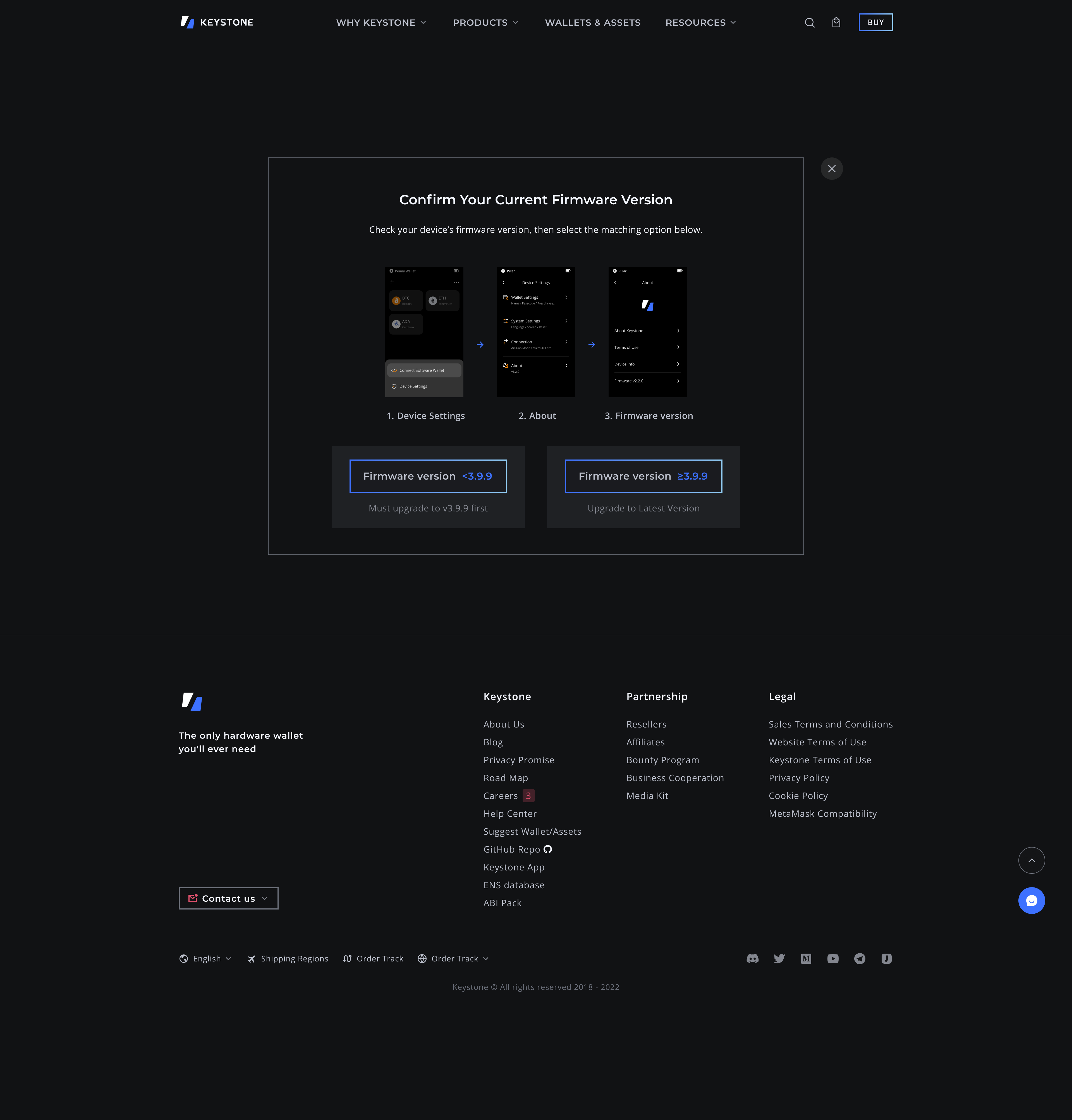
Current version below 3.9.9 , you must first upgrade to the corresponding intermediate firmware version before upgrading to the latest version. Select your current version to download the correct update.
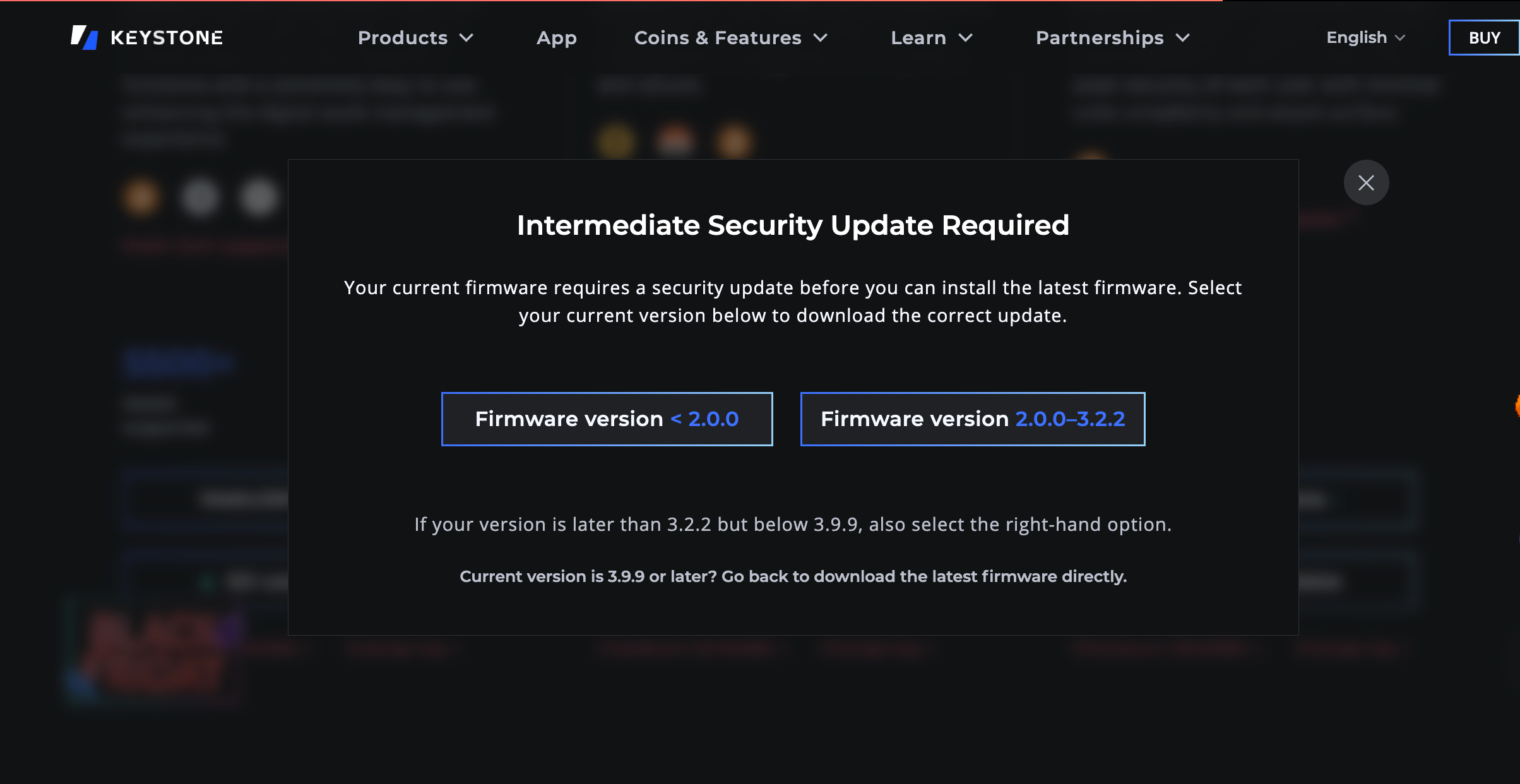
Choose Your Upgrade Method>[Continue with SD Card update]
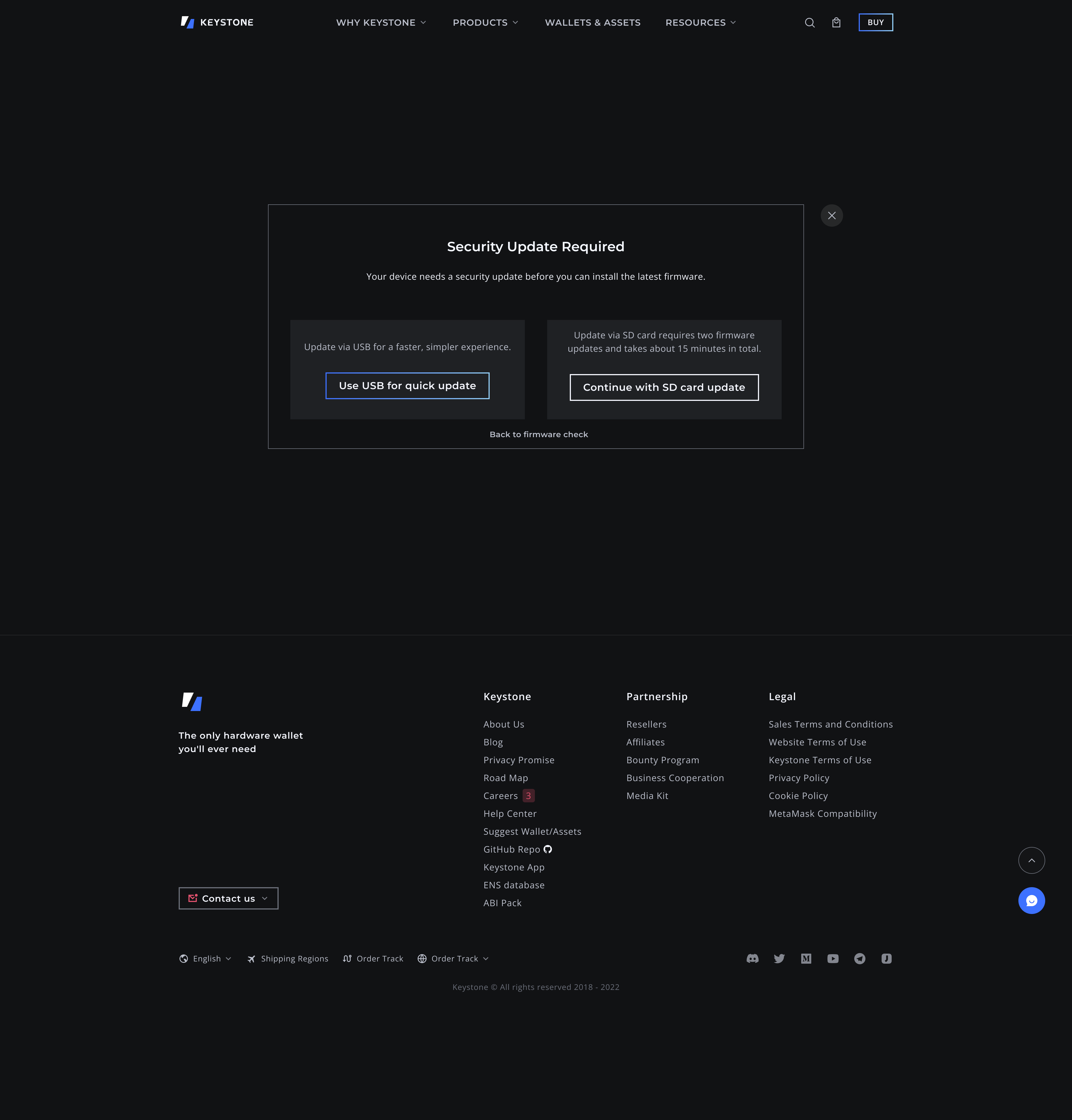
Make sure intermediate firmware upgrade is complete>[Yes, continue]
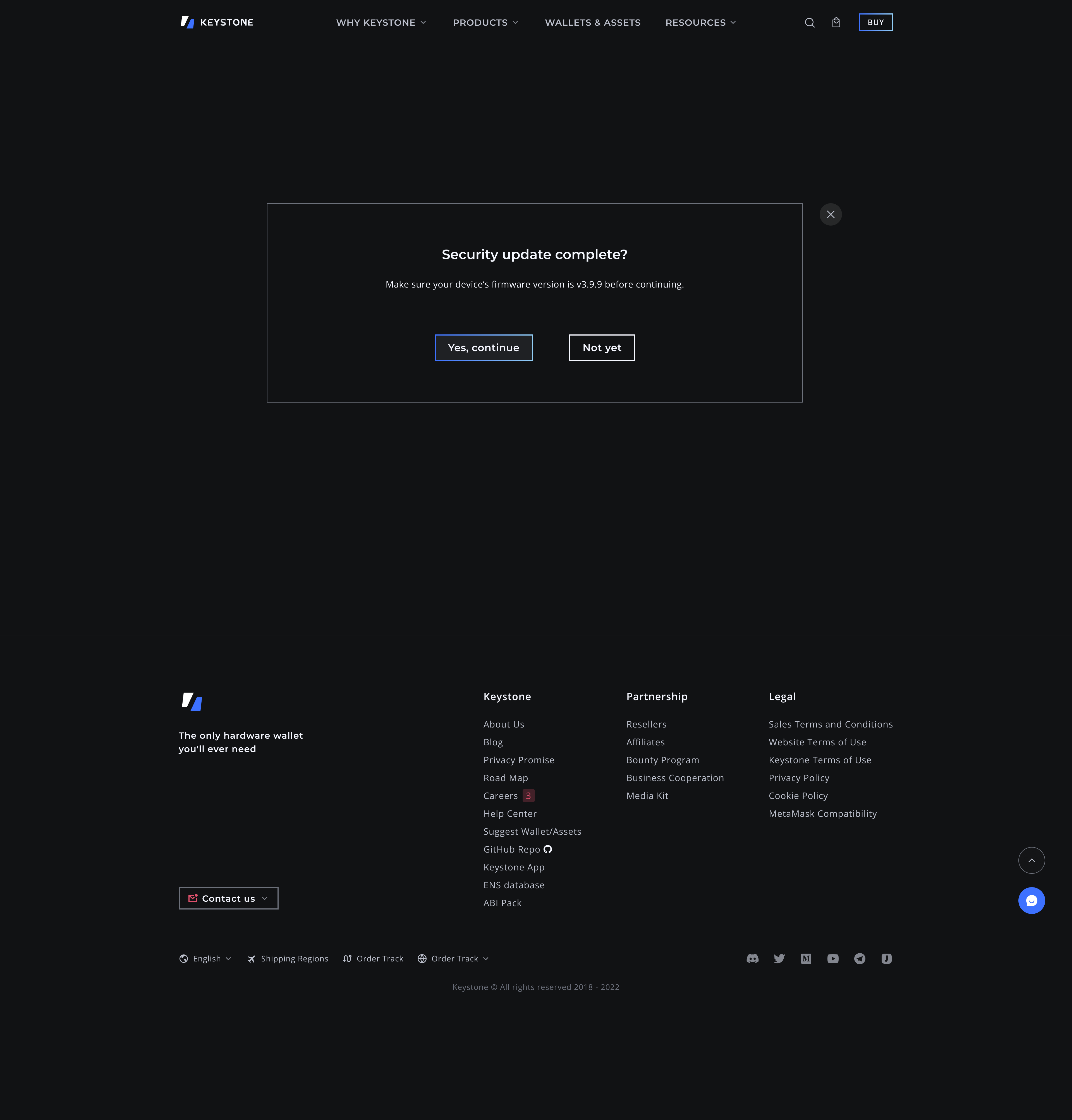
Download and install the latest firmware.
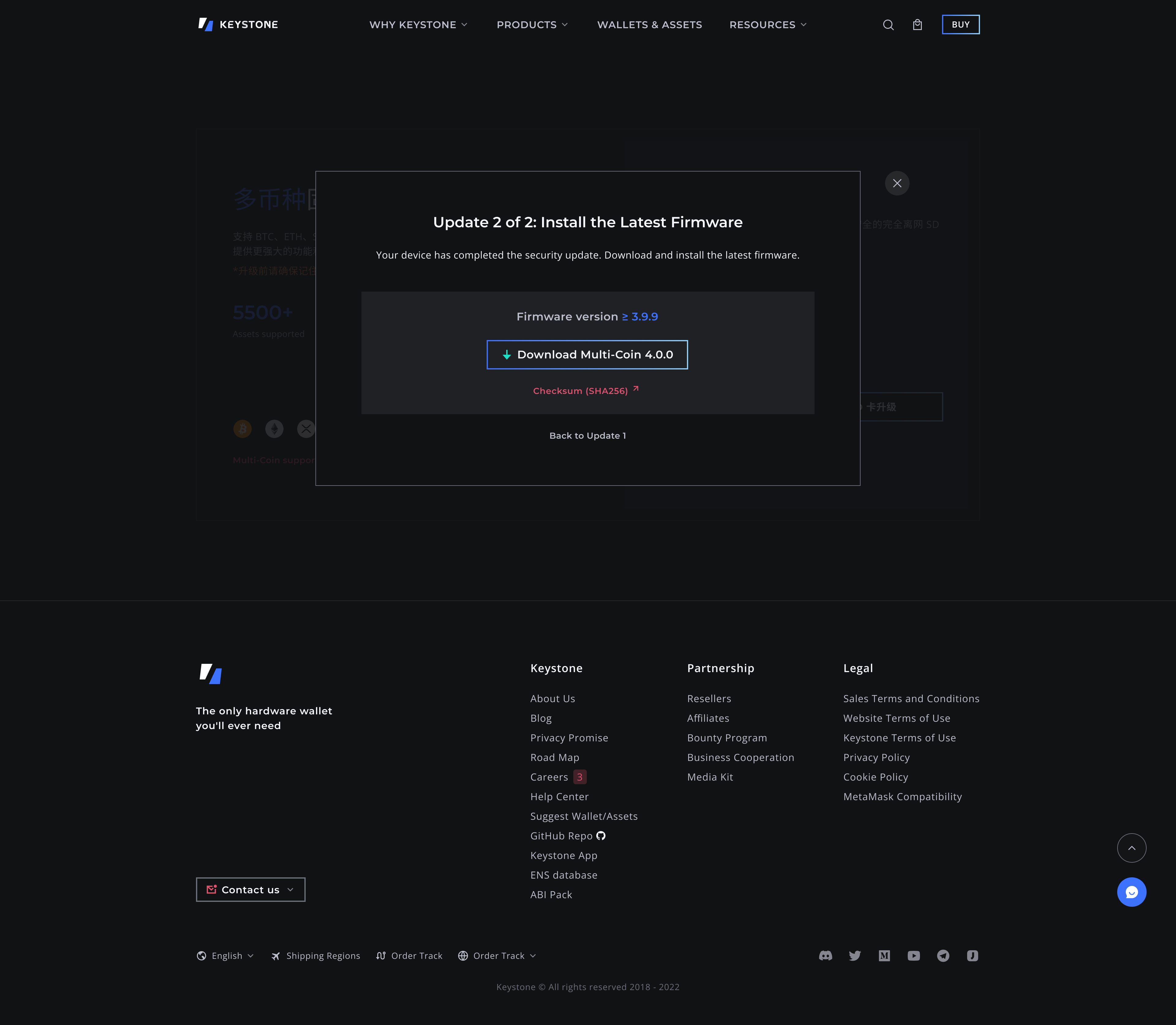
Ensure the SD card holds only keystone3.bin, no other files. If the downloaded file name is automatically generated with a suffix like “keystone3(1).bin”, please rename it to “keystone3.bin” and do not change it to any other name.
- Insert MicroSD Card: Place the MicroSD card with the firmware into the card slot on the left side of your Keystone wallet.
- Start Update: On the Keystone wallet home screen, tap the [···] icon in the upper-right corner, then go to [Device Settings] > [About] > [Firmware Update] > [Via MicroSD Card].
Update via USB
Preparation
- Keystone 3 Pro
- USB cable
- Computer
Steps
If your firmware version is below 1.0.4, you will need to perform the initial update using a MicroSD card before you can proceed with USB updates.
Check Battery: Ensure your Keystone wallet has at least 40% battery charge.
Go to the official Firmware Update page.
On Keystone: Tap the [···] icon at the top right of the main page > [Device Settings] > [System Settings] > [About] > [Firmware Update]. Tap on [via USB] and use the USB cable to connect your Keystone wallet to your computer. Tap [Approve] to grant your Keystone wallet USB access, as it might otherwise only allow charging.
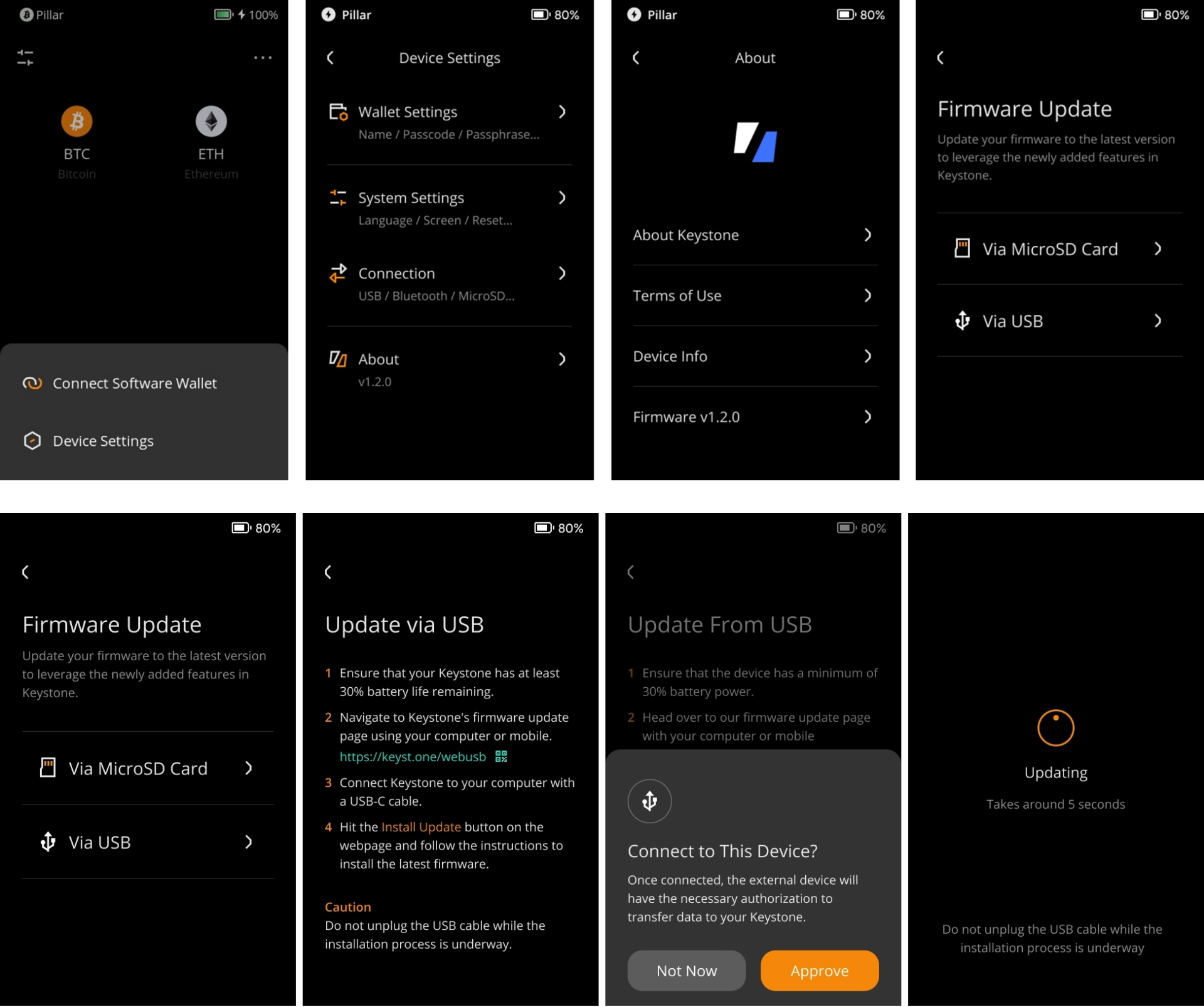
On the official firmware update page, follow the on-screen instructions:
Current firmware version ≥ 3.9.9: The latest firmware will be available for direct download once your device is connected.
Current firmware version below 3.9.9: Follow the upgrade steps below to install the required intermediate firmware first, then upgrade to the latest version.
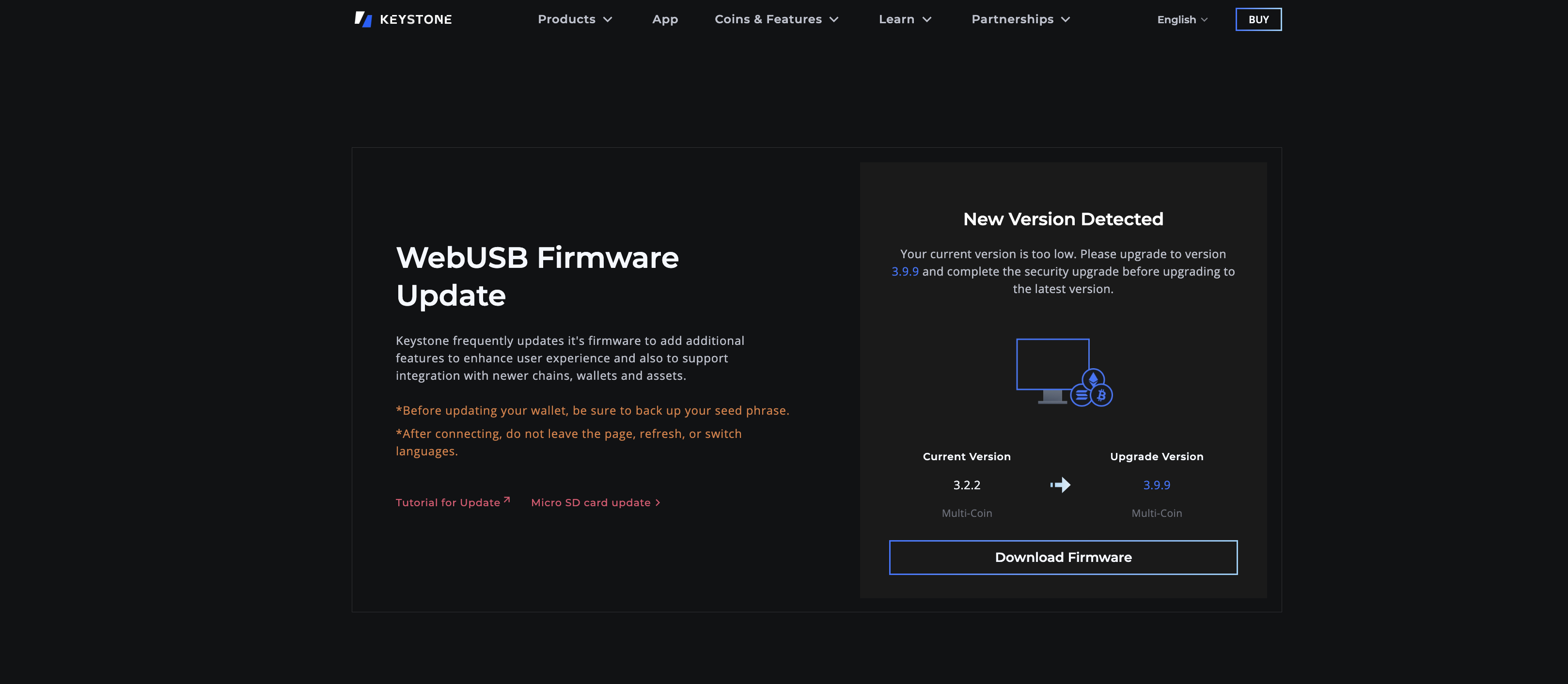
Connect your device to check the current firmware version
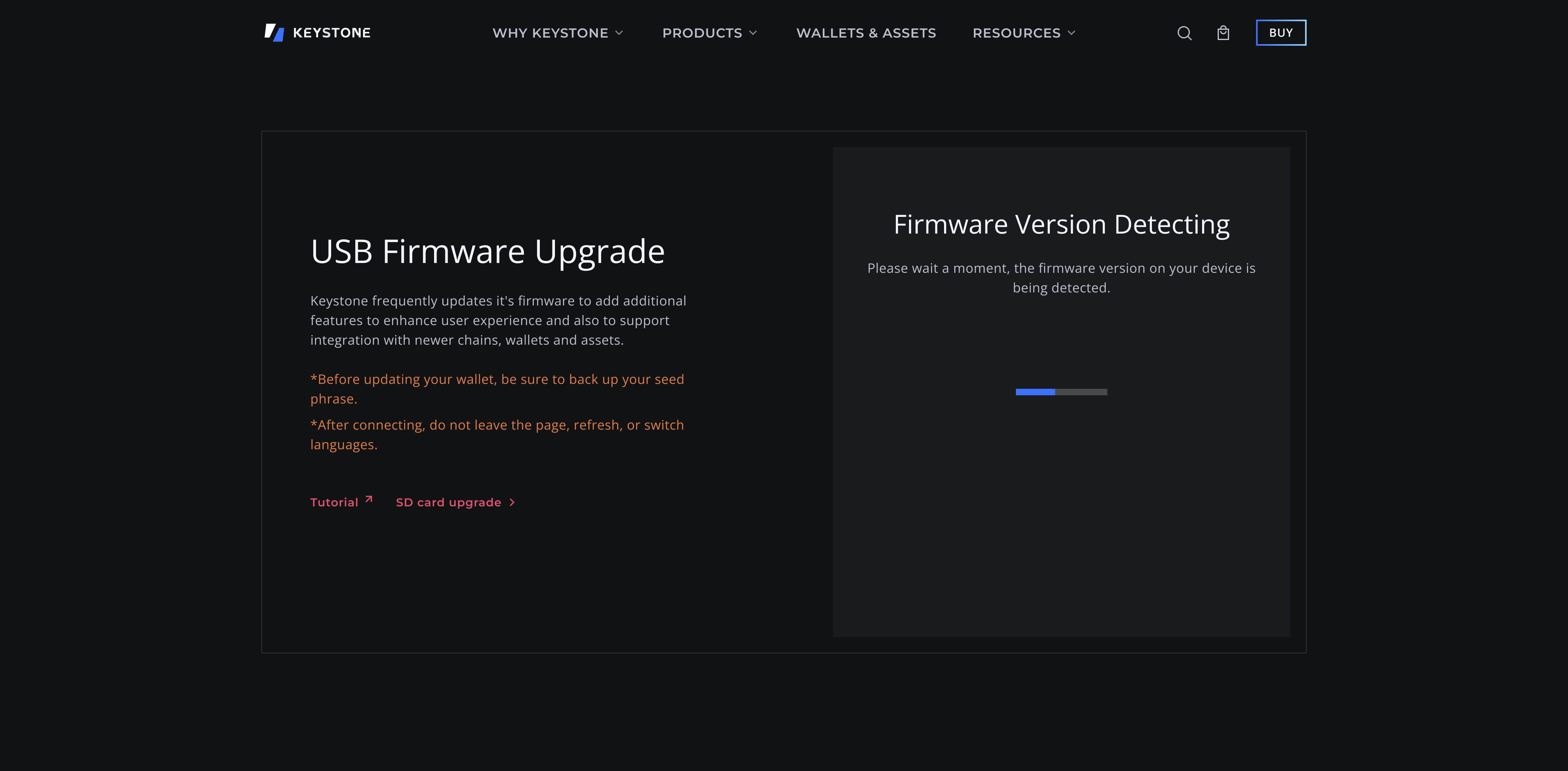
If your current firmware version is below 3.9.9, an intermediate firmware upgrade is required. Click<[Download Firmware].
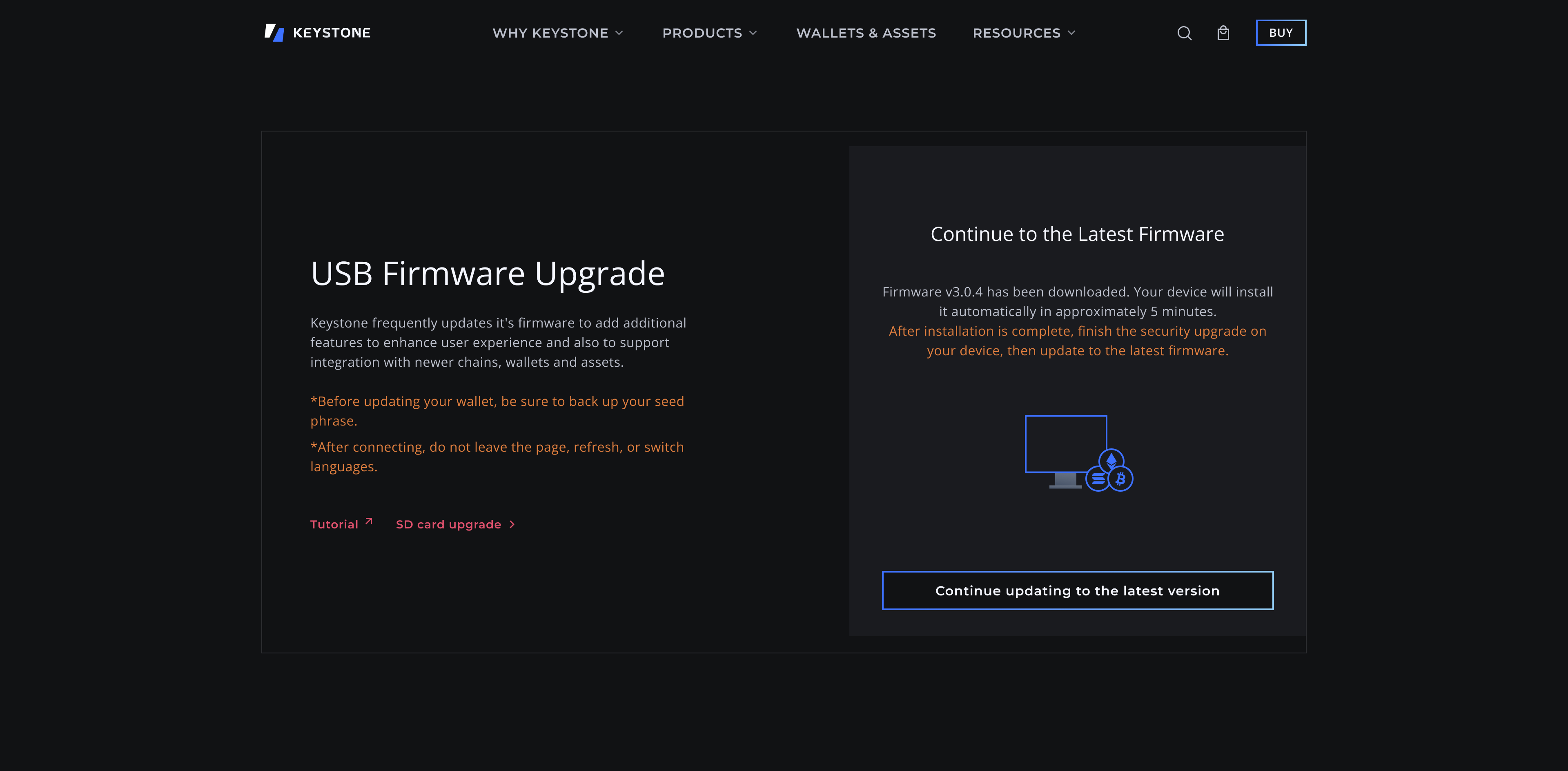
Once the intermediate firmware has been downloaded, click<[Continue updating to the latest version].
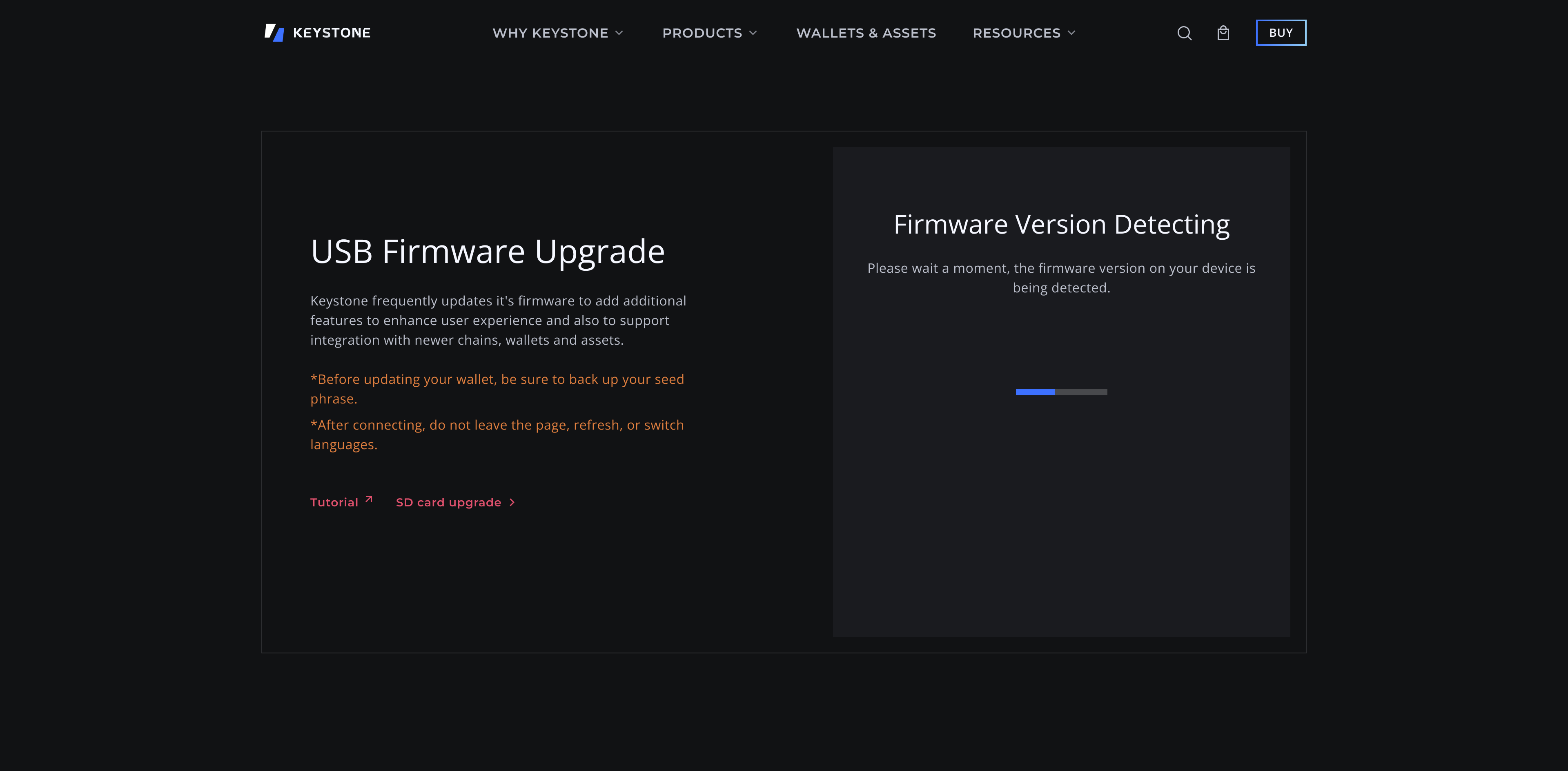
Check the firmware version
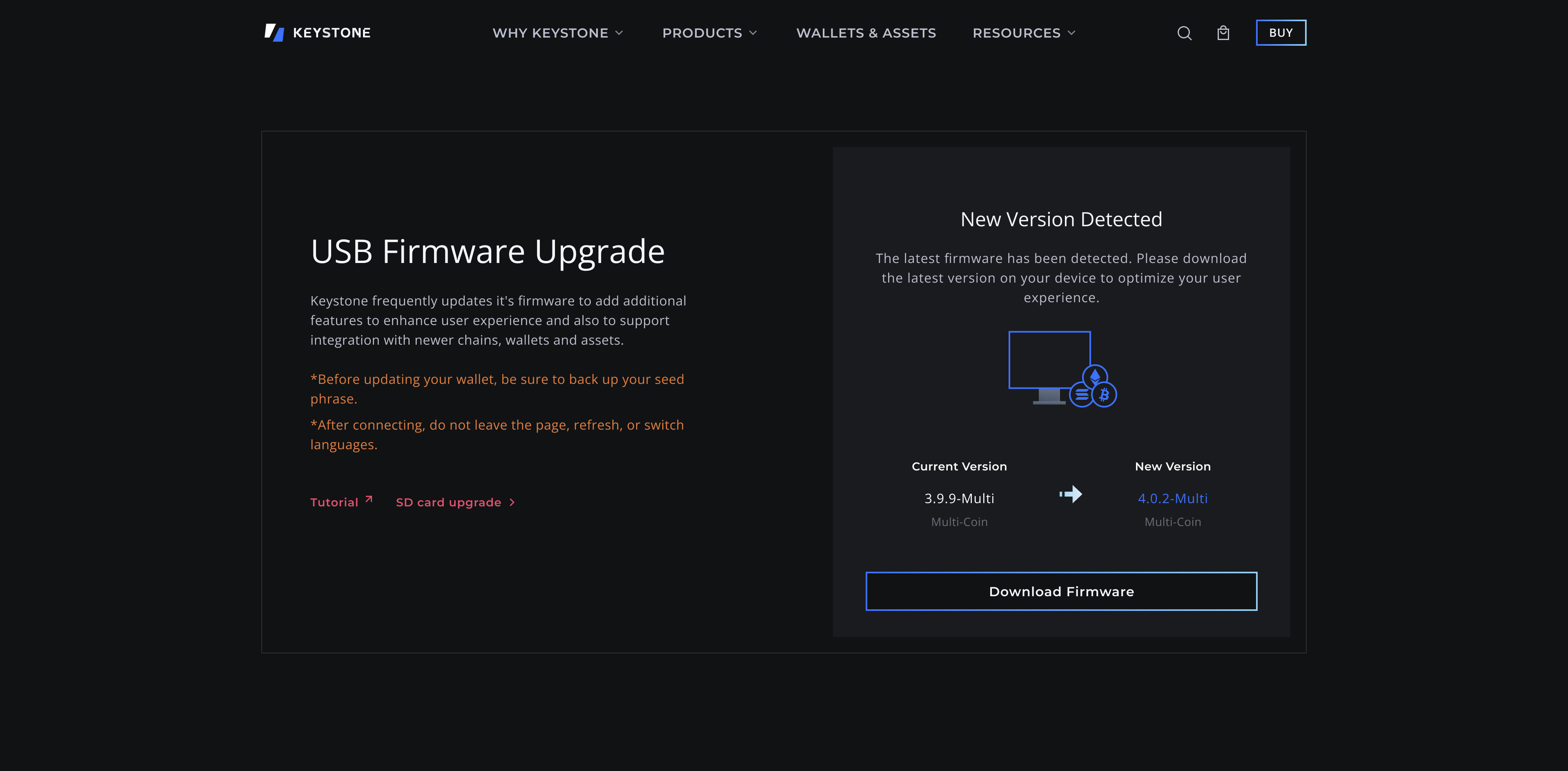
Download the latest firmware. Click<[Download Firmware] to proceed.
Wait until the firmware upgrade is complete.